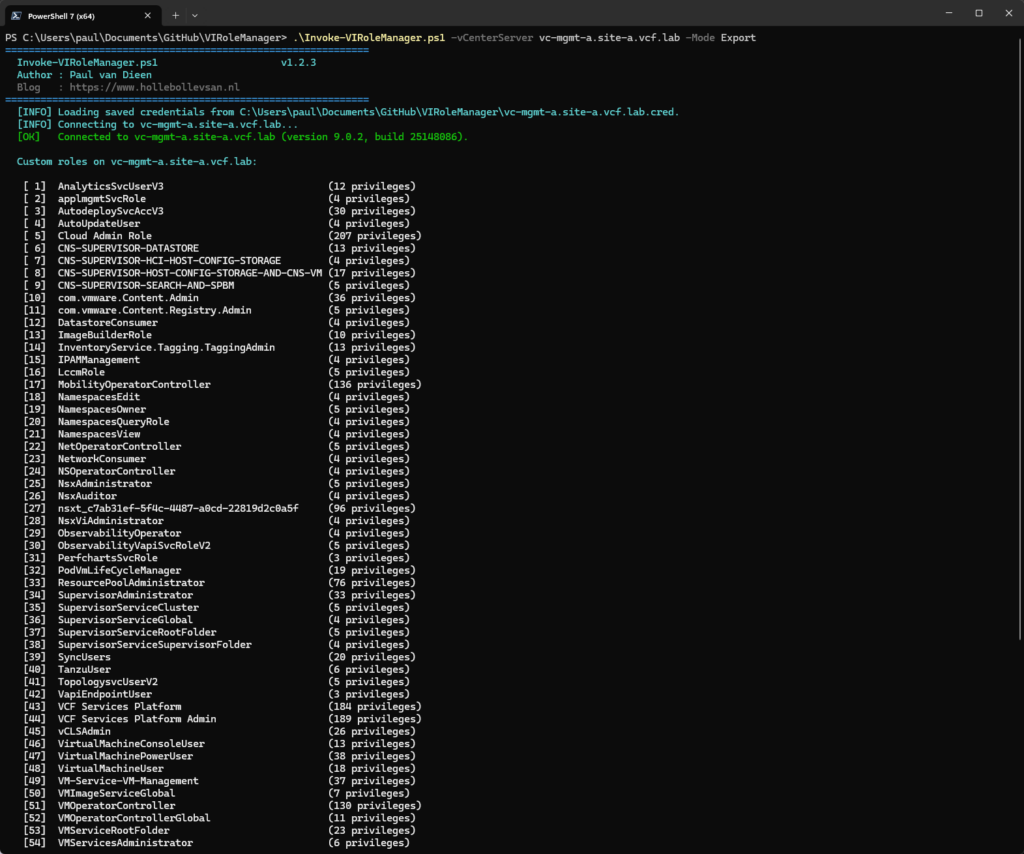

If you have ever spent time carefully building custom roles in vCenter — defining exactly which privileges a monitoring account, a backup service, or a Tanzu user needs — you know how tedious it is to recreate those same roles on a second vCenter. There is no native export button in the vSphere Client. You either document every privilege manually and click through the UI again, or you copy-paste privilege IDs until something goes missing.
That problem got old quickly, so I wrote Invoke-VIRoleManager.ps1.
What it does
The script connects to a vCenter Server using VCF.PowerCLI (or VMware.PowerCLI) and operates in one of two modes:
Export reads all custom (non-system) roles from the source vCenter and saves each one as a portable JSON file. The file contains the role name, description, and the complete list of privilege IDs. You can export a single role by name, or use the interactive picker to choose one or more from a numbered list.
Import reads a previously exported JSON file and recreates the role on the target vCenter, applying all privileges that exist there. Any privilege IDs that no longer exist — for example, a privilege removed in a newer vSphere release — are reported and skipped. The role is still created with the remaining privileges. You can also rename the role on import with -NewRoleName.
Why I needed this
The immediate trigger was a VCF 9 lab migration. I had a handful of custom roles on one vCenter that needed to land identically on a second one. With VCF 9 vCenter linking, the two vCenters are in the same SSO domain but operate independently — roles do not sync automatically. Doing it by hand once is fine; doing it repeatedly across environments is not.
A secondary use case is pre-upgrade backup. Before a major vSphere upgrade I now run an export pass on all custom roles. If something goes wrong with the upgrade, or if a privilege ID is retired in the new release, I have a clear record of what existed before and exactly what changed.
Requirements
- PowerShell 5.1 or later
- VCF.PowerCLI 9.0+ (recommended) or VMware.PowerCLI 13+
- Network access to vCenter (HTTPS)
Install the module if you do not have it already:
Install-Module -Name VCF.PowerCLI -Scope CurrentUserUsage
Interactive export — connects to vCenter, lists all custom roles, and asks which ones to export:
.Invoke-VIRoleManager.ps1 -vCenterServer vc01.vcf.lab -Mode ExportThe picker looks like this:
  Custom roles on vc01.vcf.lab:

   [ 1]  TanzuUser                                     (6 privileges)
   [ 2]  VDI Admins                                    (28 privileges)
   [ 3]  Custom Read-Only                              (12 privileges)

  Enter number(s) to export (comma-separated, or 'all'):
Enter 1,3 to export two roles, or all to export every custom role. Each selected role is saved as its own JSON file in the script directory.
Non-interactive export — for scripting or scheduled runs:
.Invoke-VIRoleManager.ps1 -vCenterServer vc01.vcf.lab -Mode Export -RoleName "TanzuUser" -FilePath C:RoleBackupsImport — scans a directory for JSON files and presents a picker:
.Invoke-VIRoleManager.ps1 -vCenterServer vc02.vcf.lab -Mode Import -FilePath C:RoleBackups JSON files in C:RoleBackups:
[ 1] TanzuUser.json role: TanzuUser (6 privileges)
[ 2] VDI_Admins.json role: VDI Admins (28 privileges)
Enter number(s) to import (comma-separated, or 'all'):Import a single file and rename the role:
.Invoke-VIRoleManager.ps1 -vCenterServer vc02.vcf.lab -Mode Import -FilePath .TanzuUser.json -NewRoleName "TanzuUser-v2"Lab environments with self-signed certificates:
.Invoke-VIRoleManager.ps1 -vCenterServer vc01.vcf.lab -Mode Export -SkipCertificateValidationCredential handling
On first run, the script prompts for credentials and saves them encrypted next to the script as <hostname>.cred. This uses PowerShell’s Export-Clixml, which protects the credential with DPAPI — it is tied to the current Windows user and machine. On subsequent runs the saved credential is loaded automatically. Use -ResetCredentials to force a new prompt.
Export file format
Each exported role is a self-contained JSON file:
{
  "ExportedFrom": "vc01.vcf.lab",
  "ExportedAt": "2026-03-31 14:57:00",
  "ScriptVersion": "1.2.3",
  "RoleName": "TanzuUser",
  "Description": "",
  "PrivilegeCount": 6,
  "Privileges": [
    "Namespaces.Configure",
    "Namespaces.Manage",
    "SupervisorServices.Manage",
    "VirtualMachine.Interact.ConsoleInteract",
    "VirtualMachine.Interact.PowerOff",
    "VirtualMachine.Interact.PowerOn"
  ]
}
The file is readable and auditable without any tooling. You can diff two exports, put them in version control, or attach them to a change request.
A note on missing privileges
If a privilege ID in the export file does not exist on the target vCenter — because it was introduced in a later release, removed, or renamed — the script reports it and continues:
  [WARN] Privilege 'Some.Removed.Privilege' not found on vc02.vcf.lab — skipped.
  [OK]   Role 'TanzuUser' created with 5 of 6 privileges.
The role is still created with whatever privileges could be resolved. You decide whether the skipped ones matter.
Download
The script is available on GitHub: pauldiee/VIRoleManager
Current version: 1.2.3
Questions or issues? Drop a comment below or open an issue on GitHub.
The original article was posted on: www.hollebollevsan.nl