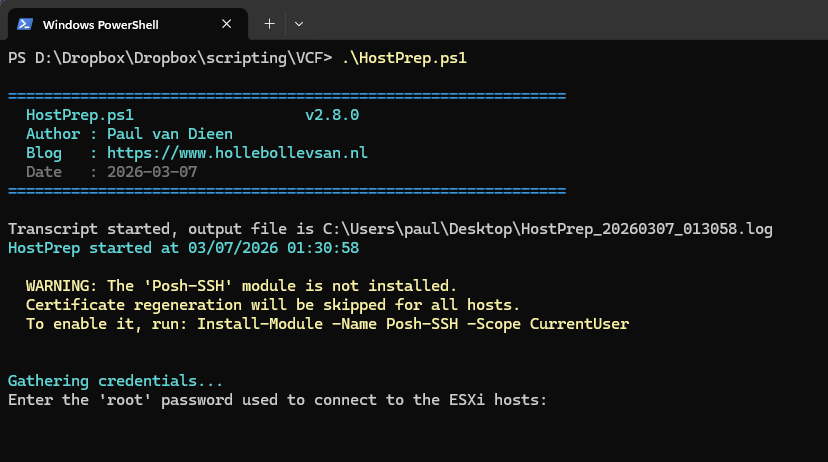
When commissioning ESXi hosts into SDDC Manager as part of a VMware Cloud Foundation 9 deployment, there are a handful of preparation steps that need to be done on every host before it can be added to the inventory. Doing this manually across a dozen or more hosts is tedious and error-prone, so I wrote a PowerShell script to handle it automatically.
What does it do?
The script — HostPrep.ps1 — reads a plain text file with one ESXi host FQDN per line and runs through the following steps on each host:
- DNS validation — performs a forward lookup (A record) and a reverse lookup (PTR) before anything else runs, so any DNS issues are visible immediately
- Connect — connects directly to the host using the root account via PowerCLI
- NTP — verifies the required NTP servers are configured and that the ntpd service is running and set to start automatically
- Advanced Settings — sets
Config.HostAgent.ssl.keyStore.allowSelfSignedtotrue, which is required by SDDC Manager - Optional Advanced Settings — applies any additional settings you have enabled in the
$OptionalAdvancedSettingsconfig block at the top of the script - Certificate regeneration — reads the TLS certificate from port 443 and checks whether the CN matches the host FQDN. If not, it temporarily enables SSH, runs
/sbin/generate-certificatesvia Posh-SSH, disables SSH again, then reboots the host and waits for it to come back online before continuing - Password reset (optional) — if requested, resets the root password to a new VCF 9 compliant value. Always runs last so the existing credential remains valid for all preceding steps
After all hosts are processed, a colourised summary table is printed to the console and a self-contained HTML report is saved next to the script.
Key features
- DNS validation — forward and reverse DNS checked per host before connect; mismatches and missing PTR records are flagged as warnings so you can fix them before commissioning
- Fully interactive — no pre-configuration required. The script prompts for credentials, password reset preference, and the host list file path at runtime
- VCF 9 password validation — if a password reset is requested, the new password is validated against all VCF 9 rules before any host is touched
- Certificate check before regen — only regenerates the certificate if the CN does not already match the hostname, avoiding unnecessary reboots
- Posh-SSH optional — if the Posh-SSH module is not installed, the script continues and prints per-host manual instructions for the certificate step instead of failing
- Optional advanced settings — a config block at the top of the script lets you enable extra settings per deployment without modifying any logic. Each entry has an
Enabledflag, a type note, and a re-run warning where relevant - Dry run mode — pass
-DryRunto simulate all steps without making any changes - WhatIfReport mode — pass
-WhatIfReportto connect to each host, collect the current certificate thumbprint and expiry date, and generate the HTML report without making any changes. Useful as a pre-commissioning inventory pass - Reboot timeout handling — if a host does not come back after a certificate-triggered reboot, a prominent warning is printed, the result is flagged as Timeout in the report, and processing continues with the next host
- Colourised summary table — per-host result for every step printed to the console after all hosts are processed
- HTML commissioning report — thumbprints in
SHA256:<base64>format with one-click copy buttons, colour-coded certificate expiry dates, and per-step status for every host - Transcript logging — a full transcript is written to the Desktop by default so there is always an audit trail
DNS validation
Before connecting to each host, the script performs a forward DNS lookup (FQDN to IP) and a reverse lookup (IP back to FQDN via PTR record). SDDC Manager commissioning requires correct forward and reverse DNS, so catching these issues early saves time. The check never blocks the remaining preparation steps — it flags the problem and continues so the rest of the host is still prepared.
Optional advanced settings
Near the top of the script there is an $OptionalAdvancedSettings block containing additional ESXi advanced settings that are disabled by default. To enable any of them, set Enabled = $true and adjust the value if needed. The following settings are included out of the box:
- esxAdminsGroup (
Config.HostAgent.plugins.hostsvc.esxAdminsGroup) — the Active Directory group whose members receive full administrative access to the host. Change the value to match your AD group name before enabling. Re-running with a different value will overwrite the setting, so verify the group name first - vSAN rebuild on LSE (
LSOM.lsomEnableRebuildOnLSE) — enables automatic vSAN rebuild when a device is flagged as Latency Sensitive Equipment - SSD TRIM (
DataMover.HardwareAcceleratedMoveandDataMover.HardwareAcceleratedInit) — instructs ESXi to issue TRIM/UNMAP commands to compatible SSDs so the drive firmware can reclaim freed blocks
Each setting has a type note in the comment above it (string vs integer) to avoid accidentally setting the wrong type, which would be silently accepted but have no effect.
HTML commissioning report
After all hosts have been processed, the script generates a self-contained HTML report saved next to the script file. The report is designed to sit open in a browser alongside SDDC Manager while you work through the commissioning wizard.
For each host it shows the SSL thumbprint in SHA256:<base64> format (exactly as the SDDC Manager commissioning UI expects) with a one-click copy button, certificate expiry date highlighted amber within 90 days and red within 30, DNS status, certificate regeneration status, reboot status, NTP, advanced settings, optional settings, password reset result, and an overall pass/fail indicator.
You can also generate the report without making any changes by running with -WhatIfReport — useful for collecting thumbprints ahead of a commissioning window.

Prerequisites
Before running the script for the first time, run this once in your PowerShell session to permanently suppress the VMware CEIP warning that PowerCLI emits on first use:
Set-PowerCLIConfiguration -Scope User -ParticipateInCEIP $false -Confirm:$falseThe Posh-SSH module is optional but recommended for automated certificate regeneration:
Install-Module -Name Posh-SSH -Scope CurrentUserUsage
Basic run — all prompts are interactive:
.HostPrep.ps1With custom NTP servers:
.HostPrep.ps1 -NtpServers "ntp1.example.com","ntp2.example.com"Dry run to validate without making changes:
.HostPrep.ps1 -DryRunCollect thumbprints and generate the report without making any changes:
.HostPrep.ps1 -WhatIfReportThe host list file is a plain text file with one FQDN per line. Lines starting with # are treated as comments and ignored.
esxi01.vcf.lab
esxi02.vcf.lab
# esxi03.vcf.lab  (skipped)
esxi04.vcf.lab
Download
The script is available on GitHub. Feel free to use it, adapt it, and let me know how it works in your environment.
https://github.com/pauldiee/VCFHostPreparation
Looking for optimisations
This script does what I need it to do, but I am sure there are things that could be done better. If you have suggestions, I would love to hear them. Some areas I am particularly curious about:
- Are there better or more reliable ways to check whether a certificate needs regenerating on a standalone ESXi host?
- Is there a way to trigger
/sbin/generate-certificateswithout needing SSH at all — for example through the ESXi API or DCUI? - Any edge cases in the VCF 9 password validation logic that I may have missed?
- Anything you would add, remove, or do differently for your own VCF deployments?
Drop a comment below or reach out via the contact page. Always happy to improve things based on real-world feedback.
The original article was posted on: www.hollebollevsan.nl